Saturday, June 14, 2014

Adding a CA Root Certificate on the ASA

By default, the ASA device creates a self-signed certificate for SSL authentication. This is fine for a test or lab environment. However, when you allow access to remote users outside your organization, you will usually purchase a valid certificate from a recognized certificate authority (CA) and prevent them from receiving any browser warnings about your certificate being invalid.

The ASA has no default CA root certificate installed. So, before you add an identity certificate for the ASA, you first need to add the certificate of the issuing CA from which you purchased your certificate. These are  downloaded from the CA's website. A few locations to download common CA certificates are listed here:

* https://www.entrust.net/downloads/root_index.cfm

* https://support.globalsign.com/customer/portal/articles/1219303-serversign-root-certificates---downloads

* https://www.symantec.com/page.jsp?id=roots


Otherwise, you could use an in-house deployed CA. I've used my Cisco 871w router to act as my CA server for my PKI, which I posted on my other <blog>.

Now that you have your CA's root certificate, in the ASDM navigate to Configuration > Device Management > Certificate Management > CA Certificates and click the Add button on the right side.

Within the Install Certificate window, you have the option to enter a trustpoint name for the CA certificate you are importing. A trustpoint is used by the ASA as a container for CA and certificate information. It is generally advisable to enter the name of the root CA, which will make life a bit easier for you when you come to install new certificates or troubleshoot existing ones. You have three options for how to install the certificate, depending on how you retrieved the root certificate (downloaded it from the CA's site in a zip file, copied a base64 output to your Clipboard, or use Simple Certificate Enrollment Protocol [SCEP] to retrieve the file).


To use the configured identity certificate for the inbound clientless SSL VPN connections, we go to Configuration > Clientless SSL VPN Access > Connection Profiles > Device Certificate and choose the identity certificate from the drop-down menu.


Saturday, June 7, 2014

CCNP Security SITCS (300-207)

I'm just one step closer in completing my CCNP Security track. I was able to take up VPN (642-648) right before Cisco updated its CCNP Security track last April 2014.

Upon completing the VPN exam (plus FIREWALL), I got both the Cisco VPN Security Specialist and Cisco ASA Specialist certifications. It's unfortunate that Cisco also redesigned and announced the retirement of these Security Specialist certs on the same date. My Security Specialist certs are still valid for 2 more years though.


Cisco also released a great migration path tool in order to know how to mix and match the old and new CCNP Security exams. Using this tool, I would need just the SITCS (300-207) in order to complete my CCNP Security.


I recently found out that Cisco Press hasn't released yet (at the time of this writing) the Official Certification Guide (OCG) for SITCS and Keith Barker is doing a refresh of the CBT Nuggets video for the CCNP Security track starting with SENSS. So, I need to wait a little bit more before studying for the SITCS exam and finally complete my CCNP Security journey.

Sunday, June 1, 2014

Clientless SSL VPN Double Authentication

One of the most common deployment scenarios for an SSL VPN solution is the use of a double authentication scheme. Double authentication was introduced in ASA code 8.2 and can support up to three simultaneous authentication methods that must all succeed before a user is successfully authenticated.

It is more common for corporations to use only two authentication methods when accessing internal resources remotely. The three authentication methods available are as follows:

* AAA authentication server (primary authentication stage)

* AAA authentication server (secondary authentication stage)

* Client certificate authentication (can be used alongside either the primary or secondary authentication
stages or on its own)


We configure both double AAA and certificate authentication by navigating to Configuration > Remote Access VPN > Clientless SSL VPN Access > Connection Profiles. In the Basic pane of the Edit Clientless SSL VPN Connection Profile window, click Both option. 

You can also use the CLI to configure secondary authentication. To do so, first enter general-attributes configuration mode for your selected tunnel group (connection profile) by using the tunnel-group <name> general-attributes command. Then specify the secondary authentication AAA group.

For this example, I chose to use the LOCAL user database twice.

ASA5505(config)# tunnel-group ?

configure mode commands/options:
  WORD < 65 char  Enter the name of the tunnel group
ASA5505(config)# tunnel-group Engineering ?

configure mode commands/options:
  general-attributes  Enter the general-attributes sub command mode
  ipsec-attributes    Enter the ipsec-attributes sub command mode
  ppp-attributes      Enter the ppp-attributes sub command mode
  webvpn-attributes   Enter the webvpn-attributes sub command mode
ASA5505(config)# tunnel-group Engineering general-attributes
ASA5505(config-tunnel-general)# ?

tunnel-group configuration commands:
  accounting-server-group                Enter name of the accounting server
                                         group
  address-pool                           Enter a list of address pools to
                                         assign addresses from
  annotation                             Specify annotation text - to be used
                                         by ASDM only
  authenticated-session-username         Specify the authenticated username
                                         will be associated with the session
  authentication-attr-from-server        Specify the authentication server that
                                         provides authorization attribute for
                                         the session
  authentication-server-group            Enter name of the authentication
                                         server group
  authorization-required                 Require users to authorize
                                         successfully in order to connect
  authorization-server-group             Enter name of the authorization server
                                         group
  default-group-policy                   Enter name of the default group policy
  dhcp-server                            Enter IP address or name of the DHCP
                                         server
  exit                                   Exit from tunnel-group general
                                         attribute configuration mode
  help                                   Help for tunnel group configuration
                                         commands
  ipv6-address-pool                      Enter a list of IPv6 address pools to
                                         assign addresses from
  nat-assigned-to-public-ip              NAT assigned IP to public IP
  no                                     Remove an attribute value pair
  override-account-disable               Override account disabled from AAA
                                         server
  password-management                    Enable password management
  scep-enrollment                        Enable SCEP proxy enrollment
  secondary-authentication-server-group  Enter name of the secondary
                                         authentication server group
  secondary-username-from-certificate    The DN of the peer certificate used as
                                         secondary username for authorization
  strip-group                            Enable strip-group processing
  strip-realm                            Enable strip-realm processing
  username-from-certificate              The DN of the peer certificate used as
                                         username for authorization and/or
                                         authentication
ASA5505(config-tunnel-general)# secondary-authentication-server-group ?

tunnel-group-general mode commands/options:
  (               The interface where the tunnel terminates
  LOCAL           Predefined server tag for aaa protocol 'local'
  WORD < 17 char  Name of authentication server group
  none            Specify 'none' to indicate authentication is not required
ASA5505(config-tunnel-general)# secondary-authentication-server-group LOCAL
INFO: This command applies only to SSL VPN - Clientless and AnyConnect.
ASA5505(config-tunnel-general)# secondary-authentication-server-group ?

tunnel-group-general mode commands/options:
  (               The interface where the tunnel terminates
  LOCAL           Predefined server tag for aaa protocol 'local'
  WORD < 17 char  Name of authentication server group
  none            Specify 'none' to indicate authentication is not required
ASA5505(config-tunnel-general)# secondary-authentication-server-group (outside) ?

tunnel-group-general mode commands/options:
  LOCAL           Predefined server tag for aaa protocol 'local'
  WORD < 17 char  Name of authentication server group
  none            Specify 'none' to indicate authentication is not required
ASA5505(config-tunnel-general)# $rver-group (outside) LOCAL ?

tunnel-group-general mode commands/options:
  use-primary-username  Use the primary username for the secondary
                        authentication
  <cr>
ASA5505(config-tunnel-general)# $rver-group (outside) LOCAL use-primary-username


Notice the login page requires for a second password, hence the term "double" authentication.


Saturday, May 24, 2014

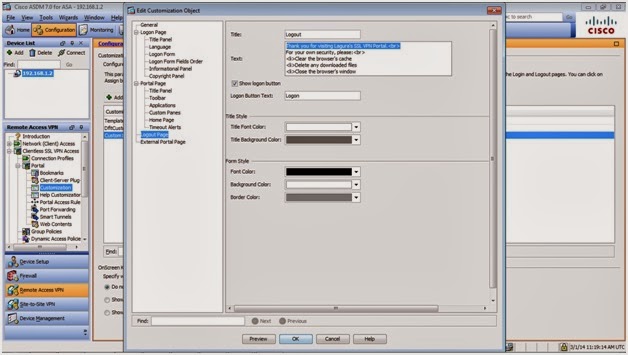
Customizing the Clientless SSL VPN Portal

An important part of deploying an SSL VPN solution is customization. After all, businesses often have a logo or color scheme used throughout the company on various pieces of documentation, assets, or even their buildings. It is not only pleasing to the eye but important for the company's image to be able to extend this scheme to your VPN portal. It can also help remote users to identify who they are connected to and the portal resources they require.

You can modify the look and feel of the following pages for your users:

* Logon page

* Portal page

* Logout page

The customization option you choose will depend on the level of granularity and customization you require. Customization through the ASDM is based on predefined areas and sections of the profile pages that you easily modify by changing the color and text and uploading logos. If you choose to fully customize the portal without the use of the ASDM, you can upload your own XML files and code; however, you are restricted to use only those items supported by the ASA.

I took out my ASA 5505 just to be able to create customized clientless SSL VPN portal. For some reason, it doesn't let me emulate it in GNS3.

Licensed features for this platform:
Maximum Physical Interfaces       : 8              perpetual
VLANs                             : 3              DMZ Restricted
Dual ISPs                         : Disabled       perpetual
VLAN Trunk Ports                  : 0              perpetual
Inside Hosts                      : 10             perpetual
Failover                          : Disabled       perpetual
Encryption-DES                    : Enabled        perpetual
Encryption-3DES-AES               : Enabled        perpetual
AnyConnect Premium Peers          : 2              perpetual      //  CLIENTLESS SSL VPN
AnyConnect Essentials             : Disabled       perpetual
Other VPN Peers                   : 10             perpetual  // REMOTE ACCESS AND SITE-TO-SITE VPN
Total VPN Peers                   : 12             perpetual
Shared License                    : Disabled       perpetual
AnyConnect for Mobile             : Disabled       perpetual
AnyConnect for Cisco VPN Phone    : Disabled       perpetual
Advanced Endpoint Assessment      : Disabled       perpetual
UC Phone Proxy Sessions           : 2              perpetual
Total UC Proxy Sessions           : 2              perpetual
Botnet Traffic Filter             : Disabled       perpetual
Intercompany Media Engine         : Disabled       perpetual
Cluster                           : Disabled       perpetual

This platform has a Base license.


The Preview button (beside OK) is available on every customization page option and it opens on a Microsoft Word file. It will also prompt for a username and password prior to viewing. You can always preview any changes made before applying them to the ASA.


The onscreen keyboard is a Java-based keyboard that you can use to prevent potential keylogger software access to any credentials the user might be required to enter. This is a useful feature if your remote users are known to operate from publicly available computers or devices that you have no control over.


Saturday, May 17, 2014

Clientless SSL VPN Smart Tunnels

Smart tunnels are the next in the evolution of application access. With smart tunnels, the requirement for a local user to have administrative rights on the client machine has now gone. The user no longer has to configure his local application settings to forward sessions to local loopback and pre-configured port, and the list of applications supported is more extensive.

Essentially, the operation of forwarding application traffic through the SSL VPN tunnel remains the same as with port forwarding and client-server plug-ins: Upon receiving the client application traffic, the ASA performs a proxy condition, and after creating a local TCP connection between itself and the application server, forwards the information to it.

The noticeable advantage smart tunnels have over client-server plug-ins is the speed in which the application operates over the tunnel (it is primarily a Java thing), and the client can make use of the full feature list available for the application. However, as with port forwarding, the drawback is that the application has to be locally installed on the remote user's PC. Therefore (and also for security reasons), smart tunnels are generally deployed to users on company- or employee-owned PCs/laptops and not those connecting from a public machine.

I prepared my ASA 5505 to allow RDP (TCP 3389) and VNC (TCP 590x) from outside network 192.168.1.0 /24 to my inside network 172.16.1.0 /24. There's a handy ping tcp command to verify if it's working.


I created a banner under Configuration > Remote Access > Clientless SSL VPN Access > Group Policies to inform outside users on which SSL VPN portal they're accesing.


Thursday, May 1, 2014

Clientless SSL VPN Client-Server Plug-ins

One of the most robust and convenient way to allow application access to users is through the use of client-server plug-ins. The greatest benefit of using client-server plug-ins over the smart tunnel or port forwarding solution is connecting from anywhere using anything. This is a great benefit to users who are always out and connecting from different machines (for example, from an Internet cafe).

Because access is through a plug-in, the user does not need the full client (fat) version of the application. It operates directly within the remote user's browser, and the application traffic is sent and received through the SSL VPN tunnel to the ASA. There is also no requirement for the remote user to have administrative rights on the local PC. The ASA carries out the same action as it does for port forwarding (creates a TCP connection between itself and the application server), and then sends and receives application traffic from the server to the remote user and vice versa.

The main drawback with the plug-in solution is the lack of supported plug-ins available. The following plug-ins are currently available for download (at the time of this writing) at Cisco.com and can be imported the ASA flash:

* SSH/Telnet Client

* Citrix ICA Client

* RDP Client (used for Windows 2000 Pro, Server, and XP)

* RDP2 Client (used for Windows Vista, 7, and Server 2003 and 2008)

* VNC Client

ciscoasa(config)# import webvpn ?

exec mode commands/options:
  AnyConnect-customization  AnyConnect-customization
  customization             Configure customization file
  mst-translation           Configure MST component
  plug-in                   Configure plug-in options
  translation-table         Configure translation table
  url-list                  Configure a list of URLs for use with WebVPN
  webcontent                Configure webcontent
ciscoasa(config)# import webvpn plug-in ?

exec mode commands/options:
  protocol  Configure plug-in protocol
ciscoasa(config)# import webvpn plug-in protocol ssh ?

exec mode commands/options:
  WORD < 256 char  The URL containing data being imported
  stdin            Specifies that the data will be provided from stdin. If the
                   number of charcters is not specified after 'stdin' then the
                   data read from standard input is expected to be
                   base64-encoded followed by "\nquit\n".
ciscoasa(config)# import webvpn plug-in protocol ssh tftp://200.1.1.2/ssh.12.21.2013.jar
!!!!!!!!!!!!!!!!!!!!!!!!!!!!!!!!!!!!!!!!!!!!!!!!!!!!!!!!!!!!!!!!!!!!!!!!!!!!!!!!!!!!!!!!!!!!!!!!!!!!!!!!!!!!!!!!!!!!!!!!!!!!!!!!!!!!!!!!!!!!!!!!!!!!!!!!!!!!!!!!!!!