Friday, September 14, 2018

Cisco Commerce Workspace (CCW)

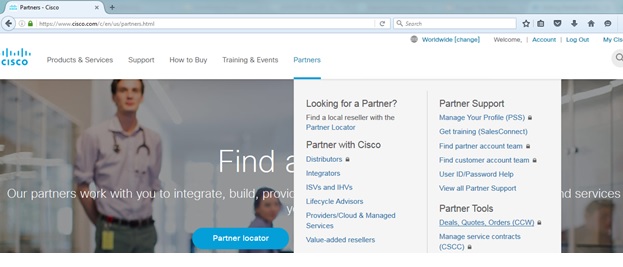
There's an online tool called Cisco Commerce Workspace (CCW) which quickly gives an estimate price (in US Dollars) on various Cisco products. This would aid Cisco reseller, IT and Project Managers create quotes and build their Bill of Materials (BOM). You can access the CCW tool by going to Cisco.com > Partners > Partner Tools > Deals, Quotes, Orders (CCW). A CCO login is required and here's a useful user guide for this tool.


Type under Search for Product or SKU (in this case ASA5525)


Click + to add item.

The main difference between a K8 and K9 device is the encryption license support. The K8 bundle supports a "weak" or base encryption license (DES) swhile K9 bundle supports a stronger encryption license (3DES/AES).


Clicked + on ASA5525-K9 and the selected item will appear on the right.


Click + on L-ASA-SC-5= (5 Security Context License) then click Add on the right in order to check out and CCW will give an estimated total price.


To perform a search again, click Find Products & Solutions.


To remove an item, click under a specific item > More Actions > Remove Line.


Sunday, September 2, 2018

Removing AAA on a Cisco ASA Security Context

I had to migrate TACACS+ from ACS to ISE and also needed to clean up AAA on each security context that were still pointed to ACS. You'll need to negate each AAA configuration lines before executing the clear configure aaa-server.


ciscoasa/CUST-A# show run aaa
aaa authentication http console ACS LOCAL
aaa authentication ssh console ACS LOCAL
aaa authentication telnet console ACS LOCAL
aaa authentication enable console ACS LOCAL
aaa authorization command ACS LOCAL
aaa authentication login-history
ciscoasa/CUST-A#          
ciscoasa/CUST-A# show run aaa-server
aaa-server ACS protocol tacacs+
aaa-server ACS (MGMT) host ACS01
 key *****
aaa-server ACS (MGMT) host ACS02
 key *****
ciscoasa/CUST-A# configure terminal
ciscoasa/CUST-A(config)# clear config a?


configure mode commands/options:

  aaa            aaa-server                access-group    access-list

  all            anyconnect-custom-data    arp             arp-inspection

  as-path        asdm                      asp             auth-prompt

  auto-update 

configure mode commands/options:
  WORD  Enter the name of the aaa-server group
  <cr>
 
ciscoasa/CUST-A(config)# clear configure aaa-server
ERROR: aaa-server group <ACS> is in use by the aaa subsystem. Please remove the relevant configuration before removing the aaa-server group.
 
 
Remove AAA config first with the quick and easy clear config aaa global config command:
 

ciscoasa/CUST-A(config)# clear config aaa ?


configure mode commands/options:

  <cr>

ciscoasa/CUST-A(config)# clear config aaa

ciscoasa/CUST-A(config)#

ciscoasa/CUST-A(config)# clear config aaa-server

ciscoasa/CUST-A(config)# end


ciscoasa/CUST-A# show run aaa-server     

ciscoasa/CUST-A#

ciscoasa/CUST-Ax# show run aaa      

aaa authentication login-history

ciscoasa/CUST-A#


I wasn't locked out after applying these commands inside the ASA context.

Sunday, August 5, 2018

Cisco FirePower 'system support firewall-engine-debug'

You can use the system support firewall-engine-debug command in a Cisco FirePower device in order to debug the traffic that hits your FMC policy rules. This is the equivalent of packet-tracer command in a Cisco ASA Firewall. You can also narrow down the debug using the client (source) and server (destination) protocol, ports and IP address.

> system

access-control          Change to Access-Control Mode
disable-http-user-cert  Disable HTTP User Cert
file                    Change to File Mode
generate-troubleshoot   Run troubleshoot
ldapsearch              Test LDAP configuration
lockdown-sensor         Remove access to bash shell
reboot                  Reboot the sensor
stig-compliance         STIG Compliance setting
support                 Change to System Support Mode - Only do thiif directed by Support.

> system support

application-identification-debug         Generate application identification debug messages
bootloader                               Display bootloader information
capture-traffic                          Display traffic or save to specified file
debug-DAQ                                Debug for DAQ functionality
debug-DAQ-reset                          Reset DAQ debug configuration file
dump-table                               Dump specified database tables to common file repository
eotool                                   Change to Enterprise Object Tool Mode
file-malware-debug                       Generate file malware debug messages
firewall-engine-debug                    Generate firell debug messages
firewall-engine-dump-user-identity-data  Generate a file containing the current state of user identity within the firewall
fstab                                    Display the file systems table
iptables                                 Display IP packet filter res
network-options                          Display network options
nslookup                                 Look up an IP address or host name with the DNS servers
ntp                                      Show NTP configuration
partitions                               Display partition information
pigtail                                  Tail log files for debugging (pigtail)
ping                                     Ping a host to check reachability
platform                                 Display platform information
pmtool                                 Change to PMTool Mode
repair-table                             Repair specified database tables
rpms                                     Display RPM information
run-rule-profiling                       Run Rule Profiling
scsi                                     Show SI device information
set-arc-mode                             Set the Automatic Resource Configuration optimization mode
sftunnel-status                          Show sftunnel status
show-arc-mode                            Show the Automatic Resource Configuration optimization mode value
silo-drain                               Assists with Disk Management
ssl-debug                                Debugging for SSL functionality
ssl-debug-reset                          Reset SSL Debug configuration file
ssl-tuning                               Tune pects of SSL functionality
ssl-tuning-reset                         Reset SSL Tuning configuration file
swap                                     Display swap information
tail-logs                                Tails the logs selected by the user
traceroute                             Find route to remote network
utilization                              Display current system utilization
view-files                               View files in the system

> system support firewall-engine-debug

Please specify an IP protocol: tcp
Please specify a client IP address: 172.16.37.2
Please specify a client port:
Please specify a server IP address:
Please specify a server port:
Monitoring firewall engine debug messages

172.16.37.2-64016 > 76.13.28.196-443 6 AS 0 I 0 New session
172.16.37.2-64016 > 76.13.28.196-443 6 AS 0 I 0 Starting with minimum 0, id 0 and SrcZone first with zones -1 -> -1, geo 0 -> 0, vlan 0, svc 0, payload 0, client 0, misc 0, user 1843, url 
172.16.37.2-64016 > 76.13.28.196-443 6 AS 0 I 0 match rule order 1, 'TEST', action stpath
172.16.37.2-64016 > 76.13.28.196-443 6 AS 0 I 0 allow action
172.16.37.2-64016 > 76.13.28.196-443 6 AS 0 I 0 Starting with minimum 0, id 0 and SrcZone first with zones -1 -> -1, geo 0 -> 0, vlan 0, svc -1, payload -1, client -1, misc -1, user 2547, url


Hit Ctrl+C to stop the debug in FirePower.

Caught interrupt signal
Exiting.

>

Saturday, July 7, 2018

Cisco ASA 3DES/AES Free License

I was configuring a site-to-site IPSec VPN on a Cisco ASA firewall and received an error:

ciscoasa(config)# crypto ipsec transform-set TSET esp-aes esp-sha-hmac
The 3DES/AES algorithms require a Encryption-3DES-AES activation key.


I verified the ASA Encryption license using the show version command but found the Encryption-3DES-AES was Disabled and the activation key were all 0s (0x00000000 0x00000000...). I suspect the activation key got lost or was corrupted while doing the image upgrade path from factory default of 8.6 > 9.0 > 9.2.

ciscoasa(config)# show version

Cisco Adaptive Security Appliance Software Version 9.2(4)
Device Manager Version 6.6(1)

Compiled on Tue 14-Jul-15 23:02 PDT by builders
System image file is "disk0:/asa924-smp-k8.bin"
Config file at boot was "startup-config"

ciscoasa up 8 days 2 hours

Hardware:   ASA5525, 8192 MB RAM, CPU Lynnfield 2394 MHz, 1 CPU (4 cores)
            ASA: 4096 MB RAM, 1 CPU (1 core)
Internal ATA Compact Flash, 8192MB
BIOS Flash MX25L6445E @ 0xffbb0000, 8192KB

Encryption hardware device : Cisco ASA-55xx on-board accelerator (revision 0x1)
                             Boot microcode        : CNPx-MC-BOOT-2.00
                             SSL/IKE microcode     : CNPx-MC-SSL-PLUS-0020-B1
                             IPSec microcode       : CNPx-MC-IPSEC-MAIN-0026
                             Number of accelerators: 1
Baseboard Management Controller (revision 0x1) Firmware Version: 2.4


 0: Int: Internal-Data0/0    : address is f44e.059f.8b7c, irq 11
 1: Ext: GigabitEthernet0/0  : address is f44e.059f.8b81, irq 5
 2: Ext: GigabitEthernet0/1  : address is f44e.059f.8b7d, irq 5
 3: Ext: GigabitEthernet0/2  : address is f44e.059f.8b82, irq 10
 4: Ext: GigabitEthernet0/3  : address is f44e.059f.8b7e, irq 10
 5: Ext: GigabitEthernet0/4  : address is f44e.059f.8b83, irq 5
 6: Ext: GigabitEthernet0/5  : address is f44e.059f.8b7f, irq 5
 7: Ext: GigabitEthernet0/6  : address is f44e.059f.8b84, irq 10
 8: Ext: GigabitEthernet0/7  : address is f44e.059f.8b80, irq 10
 9: Int: Internal-Data0/1    : address is 0000.0001.0002, irq 0
10: Int: Internal-Control0/0 : address is 0000.0001.0001, irq 0
11: Int: Internal-Data0/2    : address is 0000.0001.0003, irq 0
12: Ext: Management0/0       : address is f44e.059f.8b7c, irq 0
The Running Activation Key is not valid, using default settings:

Licensed features for this platform:
Maximum Physical Interfaces       : Unlimited      perpetual
Maximum VLANs                     : 200            perpetual
Inside Hosts                      : Unlimited      perpetual
Failover                          : Active/Active  perpetual
Encryption-DES                    : Enabled        perpetual
Encryption-3DES-AES               : Disabled       perpetual
Security Contexts                 : 2              perpetual
GTP/GPRS                          : Disabled       perpetual
AnyConnect Premium Peers          : 2              perpetual
AnyConnect Essentials             : Disabled       perpetual
Other VPN Peers                   : 750            perpetual
Total VPN Peers                   : 750            perpetual
Shared License                    : Disabled       perpetual
AnyConnect for Mobile             : Disabled       perpetual
AnyConnect for Cisco VPN Phone    : Disabled       perpetual
Advanced Endpoint Assessment      : Disabled       perpetual
UC Phone Proxy Sessions           : 2              perpetual
Total UC Proxy Sessions           : 2              perpetual
Botnet Traffic Filter             : Disabled       perpetual
Intercompany Media Engine         : Disabled       perpetual
IPS Module                        : Disabled       perpetual
Cluster                           : Disabled       perpetual

This platform has an ASA5525 VPN Premium license.

Serial Number: FCH1838ABCD
Running Permanent Activation Key: 0x00000000 0x00000000 0x00000000 0x00000000 0x00000000
Configuration register is 0x1
Configuration last modified by enable_15 at 23:09:02.104 UTC Mon Apr 16 2018


Since I got no backup of the activation keys, I went to Cisco's licensing portal to retrieve a free 3DES/AES Encryption license and install it using the activation-key <KEY> command.  

Go to Cisco's licensing portal (CCO login required) > Licenses > Get Licenses > IPS, Crypt, other > Security Products.


Under Product choose Cisco ASA 3DES/AES License.


Type the Serial Number from show version output.


ciscoasa(config)# activation-key d51bcf71 7417f552 e8921abc 9004bdef 421b0123

ciscoasa(config)# show version

<OUTPUT TRUNCATED>

Licensed features for this platform:
Maximum Physical Interfaces       : Unlimited      perpetual
Maximum VLANs                     : 200            perpetual
Inside Hosts                      : Unlimited      perpetual
Failover                          : Active/Active  perpetual
Encryption-DES                    : Enabled        perpetual
Encryption-3DES-AES               : Enabled        perpetual

Security Contexts                 : 2              perpetual
GTP/GPRS                          : Disabled       perpetual
AnyConnect Premium Peers          : 2              perpetual
AnyConnect Essentials             : Disabled       perpetual
Other VPN Peers                   : 750            perpetual
Total VPN Peers                   : 750            perpetual
Shared License                    : Disabled       perpetual
AnyConnect for Mobile             : Disabled       perpetual
AnyConnect for Cisco VPN Phone    : Disabled       perpetual
Advanced Endpoint Assessment      : Disabled       perpetual
UC Phone Proxy Sessions           : 2              perpetual
Total UC Proxy Sessions           : 2              perpetual
Botnet Traffic Filter             : Disabled       perpetual
Intercompany Media Engine         : Disabled       perpetual
IPS Module                        : Disabled       perpetual
Cluster                           : Enabled        perpetual
Cluster Members                   : 2              perpetual

This platform has an ASA5525 VPN Premium license.

Serial Number: FCH1838ABCD
Running Permanent Activation Key: 0xd51bcf71 0x7417f552 0xe8921abc 0x9004bdef 0x421b0123
Configuration register is 0x1
Configuration last modified by enable_15 at 23:09:02.104 UTC Mon Apr 16 2018

Sunday, June 3, 2018

Configuring Inter-VLAN Routing on a Cisco ASA Firewall

There's a nice Cisco link for ASA firewall best practices. The routing on a Cisco ASA firewall behaves differently compared to router. For inter-VLAN routing to work on an ASA, you'll need a Static Identity NAT between security zones or VLANs. In my lab, I've got two VLANs: Corporate and DMZ on the same security level and are trunked from SW1 to ASA1 G0/1 (inside) interface


CORP PC

H:\>ipconfig

Windows IP Configuration

Ethernet adapter Local Area Connection:

   Connection-specific DNS Suffix  . :
   IPv4 Address. . . . . . . . . . . : 192.168.10.50
   Subnet Mask . . . . . . . . . . . : 255.255.255.0
   Default Gateway . . . . . . . . . : 192.168.10.254

H:\>ping 192.168.10.254     // PING ASA GATEWAY

Pinging 192.168.10.254 with 32 bytes of data:
Reply from 192.168.10.254: bytes=32 time<1ms TTL=255

Ping statistics for 192.168.10.254:
    Packets: Sent = 4, Received = 4, Lost = 0 (0% loss),
Approximate round trip times in milli-seconds:
    Minimum = 0ms, Maximum = 0ms, Average = 0ms


DMZ SERVER

C:\Windows\System32>ipconfig

Windows IP Configuration

Ethernet adapter Local Area Connection:

   Connection-specific DNS Suffix  . :
   IPv4 Address. . . . . . . . . . . : 192.168.20.100
   Subnet Mask . . . . . . . . . . . : 255.255.255.0
   Default Gateway . . . . . . . . . : 192.168.20.254

C:\Windows\System32>ping 192.168.20.254    // PING ASA GATEWAY

Pinging 192.168.20.254 with 32 bytes of data:
Reply from 192.168.20.254: bytes=32 time<1ms TTL=255

Ping statistics for 192.168.20.254:
    Packets: Sent = 4, Received = 4, Lost = 0 (0% loss),
Approximate round trip times in milli-seconds:
    Minimum = 0ms, Maximum = 0ms, Average = 0ms


I've configured Static Identity NAT for CORP and DMZ subnets and enabled the same-security-traffic permit inter-interface command for routing on the same security level to work. I was able to ping from Corporate PC to DMZ Server IP and vice-versa.

ciscoasa# configure terminal
ciscoasa(config)# interface GigabitEthernet0/1
ciscoasa(config-if)# description ### To SW01 F0/1 Trunk ###
ciscoasa(config-if)# no shut
ciscoasa(config-if)# interface GigabitEthernet0/1.10
ciscoasa(config-subif)# vlan 10
ciscoasa(config-subif)# nameif CORP
ciscoasa(config-subif)# security-level 100
ciscoasa(config-subif)# ip address 192.168.10.254 255.255.255.0
ciscoasa(config-subif)# interface GigabitEthernet0/1.20
ciscoasa(config-subif)# vlan 20
ciscoasa(config-subif)# nameif DMZ
ciscoasa(config-subif)# security-level 100
ciscoasa(config-subif)# ip address 192.168.20.254 255.255.255.0
ciscoasa(config-subif)# exit
ciscoasa(config)# object network CORP
ciscoasa(config-network-object)# subnet 192.168.10.0 255.255.255 5.0
ciscoasa(config-network-object)# nat (CORP,DMZ) static 192.168.10.0
ciscoasa(config-network-object)# exit
ciscoasa(config)#object network DMZ
ciscoasa(config)#subnet 192.168.20.0 255.255.255.0
ciscoasa(config-network-object)# nat (DMZ,CORP) static 192.168.20.0


H:\>ping 192.168.20.100 

Pinging 192.168.20.100 with 32 bytes of data:
Reply from 192.168.20.100: bytes=32 time=1ms TTL=128

Ping statistics for 192.168.20.100:
    Packets: Sent = 4, Received = 4, Lost = 0 (0% loss),
Approximate round trip times in milli-seconds:
    Minimum = 1ms, Maximum = 1ms, Average = 1ms


C:\Windows\System32>ping 192.168.10.50

Pinging 192.168.10.50 with 32 bytes of data:
Reply from 192.168.10.50: bytes=32 time=1ms TTL=128

Ping statistics for 192.168.10.50:
    Packets: Sent = 4, Received = 4, Lost = 0 (0% loss),
Approximate round trip times in milli-seconds:
    Minimum = 1ms, Maximum = 1ms, Average = 1ms


I ran a debug icmp trace on the ASA to monitor pings and configured ICMP inspection under the global_policy.

ciscoasa# debug icmp ?
  trace 

ciscoasa# debug icmp trace ?
  <1-255>  Specify an optional debug level (default is 1)
  <cr>

ciscoasa# debug icmp trace 255
debug icmp trace enabled at level 255

ciscoasa# configure terminal
ciscoasa(config)# same-security-traffic permit inter-interface
ciscoasa(config)# policy-map global_policy
ciscoasa(config-pmap)#  class inspection_default
ciscoasa(config-pmap-c)# inspect icmp

ciscoasa# show nat           

Auto NAT Policies (Section 2)
1 (CORP) to (DMZ) source static CORP 192.168.10.0 
    translate_hits = 0, untranslate_hits = 0
2 (DMZ) to (CORP) source static DMZ 192.168.20.0 
    translate_hits = 0, untranslate_hits = 0

ciscoasa# show xlate
2 in use, 2 most used
Flags: D - DNS, i - dynamic, r - portmap, s - static, I - identity, T - twice
NAT from CORP:192.168.10.0/24 to DMZ:192.168.10.0/24
    flags sI idle 0:01:31 timeout 0:00:00
NAT from DMZ:192.168.20.0/24 to CORP:192.168.20.0/24
    flags sI idle 0:00:57 timeout 0:00:00

ciscoasa(config)# ICMP echo request from CORP:192.168.10.50 to DMZ:192.168.20.100 ID=2 seq=8117 len=32
ICMP echo reply from DMZ:192.168.20.100 to CORP:192.168.10.50 ID=2 seq=8117 len=32
ICMP echo request from CORP:192.168.10.50 to DMZ:192.168.20.100 ID=2 seq=8118 len=32
ICMP echo reply from DMZ:192.168.20.100 to CORP:192.168.10.50 ID=2 seq=8118 len=32
ICMP echo request from DMZ:192.168.20.100 to CORP:192.168.10.50 ID=1 seq=6315 len=32
ICMP echo reply from CORP:192.168.10.50 to DMZ:192.168.20.100 ID=1 seq=6315 len=32
ICMP echo request from CORP:192.168.10.50 to DMZ:192.168.20.100 ID=2 seq=8119 len=32
ICMP echo reply from DMZ:192.168.20.100 to CORP:192.168.10.50 ID=2 seq=8119 len=32
ICMP echo request from CORP:192.168.10.50 to DMZ:192.168.20.100 ID=2 seq=8120 len=32
ICMP echo reply from DMZ:192.168.20.100 to CORP:192.168.10.50 ID=2 seq=8120 len=32

ciscoasa(config-subif)# ICMP echo request from DMZ:192.168.20.100 to CORP:192.168.10.50 ID=1 seq=6348 len=32
ICMP echo reply from CORP:192.168.10.50 to DMZ:192.168.20.100 ID=1 seq=6348 len=32
ICMP echo request from DMZ:192.168.20.100 to CORP:192.168.10.50 ID=1 seq=6349 len=32
ICMP echo reply from CORP:192.168.10.50 to DMZ:192.168.20.100 ID=1 seq=6349 len=32
ICMP echo request from DMZ:192.168.20.100 to CORP:192.168.10.50 ID=1 seq=6350 len=32
ICMP echo reply from CORP:192.168.10.50 to DMZ:192.168.20.100 ID=1 seq=6350 len=32
ICMP echo request from DMZ:192.168.20.100 to CORP:192.168.10.50 ID=1 seq=6351 len=32
ICMP echo reply from CORP:192.168.10.50 to DMZ:192.168.20.100 ID=1 seq=6351 len=32


I've re-configured DMZ to be on a lower security level (50) and can still ping the DMZ Server IP since CORP traffic is sourced from a high security level (100) and is goes toward a lower security level (50) on the DMZ. There's no ACL configured yet on the CORP and DMZ interfaces.


ciscoasa(config)interface GigabitEthernet0/1.20
ciscoasa(config-subif)# security-level 50


H:\>ping 192.168.20.100

Pinging 192.168.20.100 with 32 bytes of data:
Reply from 192.168.20.100: bytes=32 time=1ms TTL=128

Ping statistics for 192.168.20.100:
    Packets: Sent = 4, Received = 4, Lost = 0 (0% loss),
Approximate round trip times in milli-seconds:
    Minimum = 1ms, Maximum = 1ms, Average = 1ms


By default, the DMZ Server can't ping CORP PC since it's from a lower security level (50) going to a high security level (100).


C:\Windows\System32>ping 192.168.10.50  

Pinging 192.168.10.50 with 32 bytes of data:
Request timed out.
Request timed out.
Request timed out.
Request timed out.

Ping statistics for 192.168.10.50:
    Packets: Sent = 4, Received = 0, Lost = 4 (100% loss),


I've allowed ICMP and applied the policy to the DMZ interface and I was able to ping to CORP PC afterwards.

ciscoasa(config)# access-list DMZ-IN extended permit icmp any any echo
ciscoasa(config)# access-list DMZ-IN extended permit icmp any any echo-reply
ciscoasa(config)# access-group DMZ-IN in interface DMZ

ciscoasa(config)# ICMP echo request from DMZ:192.168.20.100 to CORP:192.168.10.50 ID=1 seq=6356 len=32
ICMP echo reply from CORP:192.168.10.50 to DMZ:192.168.20.100 ID=1 seq=6356 len=32
ICMP echo request from DMZ:192.168.20.100 to CORP:192.168.10.50 ID=1 seq=6357 len=32
ICMP echo reply from CORP:192.168.10.50 to DMZ:192.168.20.100 ID=1 seq=6357 len=32
ICMP echo request from DMZ:192.168.20.100 to CORP:192.168.10.50 ID=1 seq=6358 len=32
ICMP echo reply from CORP:192.168.10.50 to DMZ:192.168.20.100 ID=1 seq=6358 len=32
ICMP echo request from DMZ:192.168.20.100 to CORP:192.168.10.50 ID=1 seq=6359 len=32
ICMP echo reply from CORP:192.168.10.50 to DMZ:192.168.20.100 ID=1 seq=6359 len=32


C:\Windows\System32>ping 192.168.10.50

Pinging 192.168.10.50 with 32 bytes of data:
Reply from 192.168.10.50: bytes=32 time=1ms TTL=128

Ping statistics for 192.168.10.50:
    Packets: Sent = 4, Received = 4, Lost = 0 (0% loss),
Approximate round trip times in milli-seconds:
    Minimum = 1ms, Maximum = 1ms, Average = 1ms


Below is the ASA show run.


ciscoasa# show run
: Saved
:
ASA Version 8.6(1)2
!
hostname ciscoasa
enable password 8Ry2YjIyt7RRXU24 encrypted
passwd 2KFQnbNIdI.2KYOU encrypted
names
!
interface GigabitEthernet0/0
 shutdown
 no nameif
 no security-level
 no ip address
!
interface GigabitEthernet0/1
 description ### To SW01 F0/1 Trunk ###
 no nameif
 no security-level
 no ip address
!
interface GigabitEthernet0/1.10
 vlan 10
 nameif CORP
 security-level 100
 ip address 192.168.10.254 255.255.255.0
!
interface GigabitEthernet0/1.20   
 vlan 20
 nameif DMZ  
 security-level 50
 ip address 192.168.20.254 255.255.255.0         
!
interface GigabitEthernet0/2
 shutdown
 no nameif 
 no security-level    
 no ip address           
!
interface GigabitEthernet0/3
 shutdown       
 no nameif
 no security-level
 no ip address      
!
interface GigabitEthernet0/4
 shutdown        
 no nameif         
 no security-level      
 no ip address          
!           
interface GigabitEthernet0/5 
 shutdown         
 no nameif             
 no security-level        
 no ip address     
!
interface GigabitEthernet0/6       
 shutdown       
 no nameif
 no security-level
 no ip address
!
interface GigabitEthernet0/7
 shutdown
 no nameif
 no security-level
 no ip address
!
interface Management0/0
 shutdown
 no nameif
 no security-level
 no ip address
!
ftp mode passive
same-security-traffic permit inter-interface
object network CORP
 subnet 192.168.10.0 255.255.255.0
object network DMZ
 subnet 192.168.20.0 255.255.255.0
access-list DMZ-IN extended permit icmp any any echo
access-list DMZ-IN extended permit icmp any any echo-reply
access-list DMZ-INextended permit ip any any
pager lines 24
mtu CORP 1500
mtu DMZ 1500
no failover
icmp unreachable rate-limit 1 burst-size 1
no asdm history enable
arp timeout 14400
!
object network CORP
 nat (CORP,DMZ) static 192.168.10.0
object network DMZ
 nat (DMZ,CORP) static 192.168.20.0
access-group DMZ-IN in interface DMZ
timeout xlate 3:00:00
timeout conn 1:00:00 half-closed 0:10:00 udp 0:02:00 icmp 0:00:02
timeout sunrpc 0:10:00 h323 0:05:00 h225 1:00:00 mgcp 0:05:00 mgcp-pat 0:05:00
timeout sip 0:30:00 sip_media 0:02:00 sip-invite 0:03:00 sip-disconnect 0:02:00
timeout sip-provisional-media 0:02:00 uauth 0:05:00 absolute
timeout tcp-proxy-reassembly 0:01:00
timeout floating-conn 0:00:00
dynamic-access-policy-record DfltAccessPolicy
user-identity default-domain LOCAL
no snmp-server location
no snmp-server contact
snmp-server enable traps snmp authentication linkup linkdown coldstart warmstart
telnet timeout 5
ssh timeout 5
console timeout 0
threat-detection basic-threat
threat-detection statistics access-list
no threat-detection statistics tcp-intercept
!
class-map inspection_default
 match default-inspection-traffic
!
!
policy-map type inspect dns preset_dns_map
 parameters
  message-length maximum client auto
  message-length maximum 512
policy-map global_policy
 class inspection_default
  inspect dns preset_dns_map
  inspect ftp
  inspect h323 h225
  inspect h323 ras
  inspect ip-options
  inspect netbios
  inspect rsh
  inspect rtsp
  inspect skinny 
  inspect esmtp
  inspect sqlnet      
  inspect sunrpc
  inspect tftp
  inspect sip 
  inspect xdmcp
  inspect icmp
!
service-policy global_policy global
prompt hostname context
call-home reporting anonymous prompt 2
call-home
 profile CiscoTAC-1
  no active
  destination address http https://tools.cisco.com/its/service/oddce/services/DDCEService
  destination address email callhome@cisco.com
  destination transport-method http
  subscribe-to-alert-group diagnostic
  subscribe-to-alert-group environment
  subscribe-to-alert-group inventory periodic monthly 20
  subscribe-to-alert-group configuration periodic monthly 20
  subscribe-to-alert-group telemetry periodic daily
Cryptochecksum:181df8765246de8671ab0e98a05225bb
: end