Friday, July 14, 2023

FortiGate Firewall Firmware Upgrade

Here's a link regarding the firmware upgrade of a standalone FortiGate firewall using the web GUI.

To check the current FortiOS firmware version (in FortiOS 6.x), go to System > Firmware > Current version: FortiOS v6.4.6 build6083


You can perform a firmware upgrade either online via FortiGuard or manually (offline) which I've performed in this post. My target firmware is 7.2.2 build1255.


Always check the upgrade path using the Fortinet Upgrade Path tool and release notes. Select Current Product from the drop-down option (FortiGate-40F) > select Current FortiOS Version: 6.4.6 > select Upgrade to FortiOS Version: 7.2.2 > click GO.

The Recommended Upgrade Path is: 6.4.6 build 1879 > 6.4.8 build 1914 > 7.0.7 build 0367 > 7.2.2 build 1255.


Since I'm already on firmware version 6.4.6 build 6083, I upgraded first to 6.4.8 build 1914.


Go to FortiCloud > Support > Downloads > Firmware Download. You'll need to create a login and valid support contract in order to download the firmware.

Go to Download tab

Select the v7.00 directory folder.

Select the 7.2 directory folder.

Download the firmware according to FortiGate platform/model. In this case I used a FortiGate 40F.

Use the get system status command to verify in CLI.


FW01_PRI # get system status

Version: FortiGate-40F v6.4.6,build6083,210729 (GA)

Firmware Signature: certified

Virus-DB: 1.00000(2018-04-09 18:07)

Extended DB: 1.00000(2018-04-09 18:07)

IPS-DB: 6.00741(2015-12-01 02:30)

IPS-ETDB: 0.00000(2001-01-01 00:00)

APP-DB: 6.00741(2015-12-01 02:30)

INDUSTRIAL-DB: 6.00741(2015-12-01 02:30)

Serial-Number: FGT40FTK21091234

IPS Malicious URL Database: 4.00561(2022-12-15 11:35)

BIOS version: 05000021

System Part-Number: P24680-04

Log hard disk: Not available

Hostname: FW01_PRI

Private Encryption: Disable

Operation Mode: NAT

Current virtual domain: root

Max number of virtual domains: 10

Virtual domains status: 1 in NAT mode, 0 in TP mode

Virtual domain configuration: disable

FIPS-CC mode: disable

Current HA mode: standalone

Branch point: 1879

Release Version Information: GA

System time: Fri Feb 10 20:39:21 2023


 Download the firmware files needed for the upgrade path.


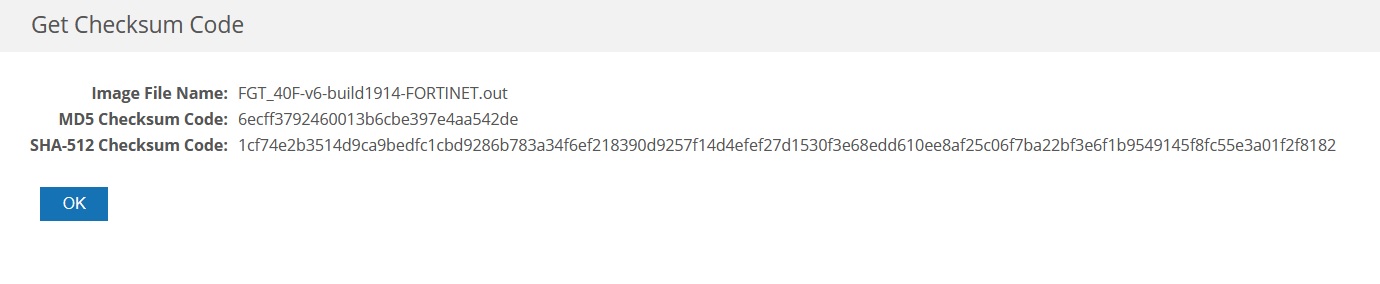
Click Checksum to view the MD5 and SHA-512 checksum code string/hash.


 Click HTTPS hyperlink to download the firmware file.


Go to System > Firmware > Select file > Browse > select the firmware file in your PC.


Click Backup config and upgrade.

Click Continue to proceed.

FortiGate-40F #


Firmware upgrade in progress ...


The FortiGate device will auto reboot. The firmware upgrade took around 3 minutes to complete and the login page with auto refresh.


The FortiGate will automatically backup the config and save in Downloads folder.

Upon login, it will show a quick video of the latest features in the new firmware.


The FortiGate doesn't have an Internet connection yet, so it failed to load the video.


Click OK to procced.


You can view the current firmware (in FortiOS 6.x) under System > Firmware > Current version: FortiOS v6.4.8 build 1914.

You can also view the firmware using the get system status command.


FortiGate-40F # get system status

Version: FortiGate-40F v6.4.8,build1914,211117 (GA)

Firmware Signature: certified

Virus-DB: 1.00000(2018-04-09 18:07)

Extended DB: 1.00000(2018-04-09 18:07)

IPS-DB: 6.00741(2015-12-01 02:30)

IPS-ETDB: 0.00000(2001-01-01 00:00)

APP-DB: 6.00741(2015-12-01 02:30)

INDUSTRIAL-DB: 6.00741(2015-12-01 02:30)

Serial-Number: FGT40FTK2101234

IPS Malicious URL Database: 1.00001(2015-01-01 01:01)

BIOS version: 05000021

System Part-Number: P24680-04

Log hard disk: Not available

Hostname: FortiGate-40F

Private Encryption: Disable

Operation Mode: NAT

Current virtual domain: root

Max number of virtual domains: 10

Virtual domains status: 1 in NAT mode, 0 in TP mode

Virtual domain configuration: disable

FIPS-CC mode: disable

Current HA mode: standalone

Branch point: 1914

Release Version Information: GA

System time: Sun Feb 12 03:17:50 2023


Perform the same steps until the target firmware is upgraded.


Starting FortiOS version 7.0, the firmware version is either checked under System Firmware or Fabric Management > Firmware Version: v7.0.7 build 0367.


To upgrade firmware, go to System > Firmware > File Upload.

Select the target firmware image file > click Confirm and Backup Config.

Alternatively, you can go to System > Fabric Management > select Device: FortiGate-40F > Upgrade.

Select File Upload > select Firmware image file > click Confirm and Backup Config.

Click Continue to proceed.


FortiGate-40F # get system status

Version: FortiGate-40F v7.2.2,build1255,220930 (GA.F)

Firmware Signature: certified

Virus-DB: 1.00000(2018-04-09 18:07)

Extended DB: 1.00000(2018-04-09 18:07)

AV AI/ML Model: 0.00000(2001-01-01 00:00)

IPS-DB: 6.00741(2015-12-01 02:30)

IPS-ETDB: 0.00000(2001-01-01 00:00)

APP-DB: 6.00741(2015-12-01 02:30)

INDUSTRIAL-DB: 6.00741(2015-12-01 02:30)

IPS Malicious URL Database: 1.00001(2015-01-01 01:01)

IoT-Detect: 0.00000(2001-01-01 00:00)

Serial-Number: FGT40FTK2101234

BIOS version: 05000021

System Part-Number: P24680-04

Log hard disk: Not available

Hostname: FortiGate-40F

Private Encryption: Disable

Operation Mode: NAT

Current virtual domain: root

Max number of virtual domains: 10

Virtual domains status: 1 in NAT mode, 0 in TP mode

Virtual domain configuration: disable

FIPS-CC mode: disable

Current HA mode: standalone

Branch point: 1255

Release Version Information: GA

System time: Sun Feb 12 03:34:24 2023

Last reboot reason: warm reboot


Saturday, June 3, 2023

Cisco Firepower 1120 ASA Image and FXOS

You won't find the location of the ASA image in a Firepower 1120. You can only view it using the FXOS CLI. The Firepower eXtensible Operating System (FXOS) is the supervisor and on top of it, you can either run the Firepower Threat Defense (FTD) or the classic ASA software. FXOS provides command-based interface for configuring features, monitoring chassis status, and accessing advanced troubleshooting features.

You can use the show version command to view the current ASA version and image file location. In this case the image file is not found in disk0 (flash).


ciscoasa/admin# changeto system

ciscoasa# show version


Cisco Adaptive Security Appliance Software Version 9.13(1)2 <system>

SSP Operating System Version 2.7(1.107)

Device Manager Version 7.13(1)


Compiled on Tue 22-Oct-19 19:47 PDT by builders

System image file is "disk0:/installables/switch/fxos-k8-fp1k-lfbff.2.7.1.107.SPA"

Config file at boot was "startup-config"


ciscoasa up 1 day 6 hours


<OUTPUT TRUNCATED>


ciscoasa# dir /all disk0:


Directory of disk0:/


805306668  drwx  4096         05:35:01 May 18 2023  log

241    drwx  4096         02:19:58 May 18 2023  .private

538857109  -rw-  34033084     06:01:55 Nov 24 2020  asdm.bin

537176350  -rw-  0            06:03:35 Nov 24 2020  coredumpfsysimage.bin

2      drwx  4096         06:10:38 Apr 13 2023  coredumpfsys

210    drwx  21           06:04:27 Nov 24 2020  smart-log

268442472  drw-  25           06:05:05 Nov 24 2020  coredumpinfo

537178212  -rwx  10738        01:34:16 May 18 2023  old_running.cfg

537178213  -rwx  9187         07:25:39 May 18 2023  admin.cfg

2      drwx  4096         06:10:38 Apr 13 2023  cores

204    drwx  6            06:03:35 Nov 24 2020  fxos

538857097  -rw-  1834         06:03:34 Nov 24 2020  cspCfg.xml

805306629  drw-  18           06:45:19 May 18 2023  snmp


6 file(s) total size: 34058827 bytes

16106127360 bytes total (15795257344 bytes free/98% free)


Type the connect fxos command to execute FXOS CLI commands. Use the scope firmware then show image commands to view the ASA image file which is a CSP APP (application image).


ciscoasa# connect fxos

Configuring session.

Connecting to FXOS.

...

Connected to FXOS. Escape character sequence is 'CTRL-^X'.


NOTICE: You have connected to the FXOS CLI with read-only privileges.

For admin level privileges connect using 'connect fxos admin'.

Config commands and commit-buffer are not supported in appliance mode.


Cisco Firepower Extensible Operating System (FX-OS) Software

TAC support: http://www.cisco.com/tac

Copyright (c) 2009-2019, Cisco Systems, Inc. All rights reserved.


The copyrights to certain works contained in this software are

owned by other third parties and used and distributed under

license.


Certain components of this software are licensed under the "GNU General Public

License, version 3" provided with ABSOLUTELY NO WARRANTY under the terms of

"GNU General Public License, Version 3", available here:

http://www.gnu.org/licenses/gpl.html. See User Manual (''Licensing'') for

details.


Certain components of this software are licensed under the "GNU General Public

License, version 2" provided with ABSOLUTELY NO WARRANTY under the terms of

"GNU General Public License, version 2", available here:

http://www.gnu.org/licenses/old-licenses/gpl-2.0.html. See User Manual

(''Licensing'') for details.


Certain components of this software are licensed under the "GNU LESSER GENERAL

PUBLIC LICENSE, version 3" provided with ABSOLUTELY NO WARRANTY under the terms

of "GNU LESSER GENERAL PUBLIC LICENSE" Version 3", available here:

http://www.gnu.org/licenses/lgpl.html. See User Manual (''Licensing'') for

details.


Certain components of this software are licensed under the "GNU Lesser General

Public License, version 2.1" provided with ABSOLUTELY NO WARRANTY under the

terms of "GNU Lesser General Public License, version 2", available here:

http://www.gnu.org/licenses/old-licenses/lgpl-2.1.html. See User Manual

(''Licensing'') for details.


Certain components of this software are licensed under the "GNU Library General

Public License, version 2" provided with ABSOLUTELY NO WARRANTY under the terms

of "GNU Library General Public License, version 2", available here:

http://www.gnu.org/licenses/old-licenses/lgpl-2.0.html. See User Manual

(''Licensing'') for details.


firepower-1120# scope firmware

firepower-1120 /firmware # show image

Name                                          Type                 Version

--------------------------------------------- -------------------- -------

cisco-asa.9.13.1.2.csp                        CSP APP              9.13.1.2

fxos-k8-fp1k-firmware.1008.0203.SPA           Switch Firmware      1008.0203

fxos-k8-fp1k-lfbff.2.7.1.107.SPA              System Image         2.7(1.107)

fxos-k9-manager.2.7.1.107.SPA                 Manager Image        2.7(1.107)

fxos-k9-mgmtext.2.7.1.84.SPA                  Management Extension 2.7(1.84)


To go back to ASA mode or CLI prompt, type the connect asa command.


firepower-1120 /firmware #  connect asa

Connection with FXOS terminated.

Type help or '?' for a list of available commands.

ciscoasa/admin# show version


Cisco Adaptive Security Appliance Software Version 9.13(1)2 <context>

SSP Operating System Version 2.7(1.107)

Device Manager Version 7.13(1)


Compiled on Tue 22-Oct-19 19:47 PDT by builders


ciscoasa up 1 day 6 hours


Hardware:   FPR-1120, 13799 MB RAM, CPU Atom C3000 series 2000 MHz, 1 CPU (12 cores)


Encryption hardware device : Cisco FP Crypto on-board accelerator (revision 0x11)

                             Driver version        : 4.1.0

                             Number of accelerators: 6


 1: Int: Internal-Data0/0    : address is 00a0.c900.0002, irq 10

 3: Int: Not licensed        : irq 0

 4: Ext: Management1/1       : address is a281.7300.0004, irq 0

 5: Int: Internal-Data1/1    : address is a281.7300.0002, irq 0


License mode: Smart Licensing


Licensed features for this platform:

Maximum Physical Interfaces       : Unlimited     

Maximum VLANs                     : 512           

Inside Hosts                      : Unlimited     

Failover                          : Active/Active 

Encryption-DES                    : Enabled       

Encryption-3DES-AES               : Enabled       

Security Contexts                 : 2             

Carrier                           : Disabled      

AnyConnect Premium Peers          : 150           

AnyConnect Essentials             : Disabled      

Other VPN Peers                   : 150           

Total VPN Peers                   : 150           

AnyConnect for Mobile             : Enabled       

AnyConnect for Cisco VPN Phone    : Enabled       

Advanced Endpoint Assessment      : Enabled       

Shared License                    : Disabled      

Total TLS Proxy Sessions          : 320           

Cluster                           : Disabled      


Serial Number: JAD24421234

Configuration register is 0x1

Configuration last modified by enable_15 at 07:47:12.437 UTC Thu May 18 2023


Saturday, May 6, 2023

Configure Meraki MX WAN IP Address (Internet)

Here's a link on how to configure a Static IP address in the Meraki MX WAN Uplink (Internet 1).

The Meraki MX WAN Uplink is set to obtain a DHCP IP address from the ISP by default. In most enterprise network, the ISP will assign a static IP address (usually a /30). 

To configure the Meraki MX WAN Uplink (Internet 1), connect an RJ45 cable in the laptop LAN port to Meraki MX LAN Port 5. Set the laptop LAN to auto obtain a DHCP IP address. The Meraki MX should give an IP address 192.168.128.2/24.


C:\Users\user>ipconfig


Windows IP Configuration


Ethernet adapter Ethernet:


   Connection-specific DNS Suffix  . :

   Link-local IPv6 Address . . . . . : fe80::ddf8:984f:a3:c8c0%53

   IPv4 Address. . . . . . . . . . . : 192.168.128.2

   Subnet Mask . . . . . . . . . . . : 255.255.255.0

   Default Gateway . . . . . . . . . : 192.168.128.1


Type in the web browser: http://mx.meraki.com. Note it's an HTTP connection. You'll land in the Connection page/tab.


Take note of the Meraki MX serial number found in the rear chassis.

Go to Configure > login using the serial number as the Username > leave the password blank > click Sign in.


Go to Configure > Uplink Configuration > Internet 1 (WAN Port 3) > IP assignment > Static.

Type Address (assigned by the ISP): 200.1.1.100 > Netmask: 255.255.255.252 > Gateway > DNS Server 1: 8.8.8.8

Click Save.

Notice it will display a Configure changes saved.

I did a hard reboot on the Meraki MX appliance by removing and reconnecting the power cable.


I received a different DHCP IP address in my laptop.


C:\Users\user>ipconfig


Windows IP Configuration


Ethernet adapter Ethernet:


   Connection-specific DNS Suffix  . :

   Link-local IPv6 Address . . . . . : fe80::ddf8:984f:a3:c8c0%53

   IPv4 Address. . . . . . . . . . . : 192.168.0.2

   Subnet Mask . . . . . . . . . . . : 255.255.0.0

   Default Gateway . . . . . . . . . : 192.168.0.1


The Internet 1 (WAN Port ) Uplink configuration is still intact.


You can now connect the ISP RJ45 cable to WAN Port 3 and further manage/configure the Meraki MX from the Meraki cloud dashboard.


I had to change from WAN Port 3 (RJ45) to Port 1 (fiber SFP) and also change its public IP address. I used a Cisco brand GLC-LH-SMD and it worked.

You'll get these web error page if you use the LAN port and use http://mx.meraki.com and http://wired.meraki.com.


You should reconfigure the MX device using the out-of-band Management port (wrench icon) while it's in production. Set your PC LAN TCP/IP setting to DHCP (auto obtain an IP address). Type in the web browser http://setup.meraki.com. In this case I opened another web browser (Microsoft edge). I got an IP address of 10.122.65.134/8 from the MX Management port.

Go to Configure > Internet 1 > Active Port > select: SFP > update IP address, Netmask and Gateway. 

In this case the provider is using a VLAN tag so I selected: Use VLAN tagging > type VLAN ID.

Click Save (bottom of page) and make sure the status changed to Healthy (green check). Or you can check the power (left most LED light) turns to solid white or you can also check from the Meraki Dashboard.


Friday, April 7, 2023

Register a FortiGate Next-Generation Firewall in FortiCloud

Here's a link on how to register a FortiGate device in FortiCloud portal. This is an essential step in setting up a FortiGate Next-Generation Firewall (NGFW) in order to get full access to Fortinet technical support (create ticket and firmware download) and FortiGuard services (AntiMalware, Antivirus, Web filter, etc).

This is a FortiGate 40F front chassis where you can find the status LED light.

The rear chassis has the power, console and Ethernet ports: 1, 2, 3, A and WAN.

You'll find the sticket for the initial local setup and FortiCloud key on the top chassis.

You can register a new FortiGate device in the FortiCloud portal. This is how the FortiCloud Asset Management dashboard looks like.

You can also navigate other FortiCloud services under Services.


You can navigate to various FortiCloud technical support under Support.

To register a new FortiGate device, go to My Assets > click Register More (upper right blue button).

Type the device serial number > select: A non-government user (for private company/enterprise) > click Next.

Type the FortiCloud Key > type a Production Description (optional) and Support Contract (optional) > select Fortinet Partner. (drop-down).

Read/scroll the End User License Agreement (EULA) > click Accept > click Next.

Read the Important Notice > click Accept > click Confirm.

Read the Product Info summary > click Done.